How I Hack Daily Notes In Obsidian with Dataview to Remember All the Things
How I use daily notes in Obsidian with the Dataview plugin to help me remember stuff, capture ideas & tasks, and surface what matters in seconds.

Key Takeaways
Scattered, forgetful, and drowning in chaos.
That’s pretty much business as usual in my head when I’m trying to distractedly multitask about all the things I need to do instead of focusing on one thing at a time.
A low point? I paid for my daughter’s Guide camp, but blanked on whether I’d filled out the online form. When an email was sent stating: “lots of parents haven’t signed up,” I had to ask – twice – if I was one of them. Turns out I had filled out the form, but had forgotten.
It wasn’t cognitive decline (thankfully). My iron bottomed out, and my brain switched back on after an iron infusion.
(This is where I add a motherly reminder to get a yearly medical checkup!)
But I needed a system that left a ‘receipt’ for everything I did, so I could double-check myself.
That’s where Daily Notes in Obsidian came in.
TL;DR—Daily‑Notes‑on‑Turbo
Who it’s for: Anyone who keeps forgetting what they’ve done or who wants a simple, private system to track stuff (like books read).
The fix:
- Turn on Obsidian’s Daily Notes + a simple template (one folder, one note).
- Capture everything on the fly in your Daily Note, using backlinks where relevant.
- Review once a day/week: move tasks to your manager, archive info, etc.
- Backlinks give instant context; every link shows up in its home note automatically.
- Optional power‑up: a 6‑line Dataview query rolls related notes into bullets into a single document – no copy and paste.
Result: searchable “digital receipts,” automatic dashboards, zero forgotten commitments, all stored locally with no vendor lock‑in.
What are Daily Notes or the Daily Log
Daily notes are a quick catch-all for random things that come up throughout your day.
They may include:
- A record of things you did
- Work notes (if you use this for work)
- Things you need to remember
- Random thoughts
- Notes from a phone call
- A to-do item
- How you’re feeling
- Workout notes
- Health notes (if you need to track these)
- Macros and diet
- Books you’re reading
- Videos you watched, podcasts you listened to
- Notes on conversations you had
- A catch-all for things that spark your interest (ie a course you discover and want to take)
If you’re into keeping a Zettelkasten, then it’s an inbox for your fleeting notes.
You don’t need to record all of these things or even everything that happened during your day. It’s a place to easily record things you want to track or remember.
There are a bazillion ways to keep daily notes. With an old-fashioned notebook, for starters. Or in one of the dozens of apps available online. I’ve been experimenting with just talking out my day with AI, but that has pros and cons, including information getting lost in a huge chat, and, of course, privacy.
One digital method that works well for me is using Obsidian’s Daily Notes function.
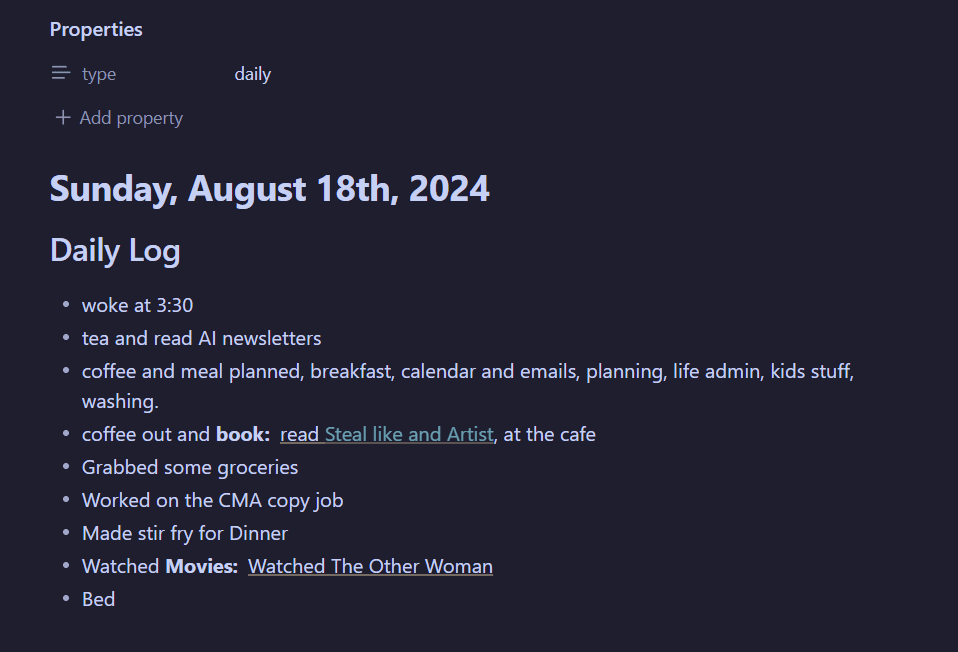
The great thing about Obsidian is that the files are stored on your computer – great for privacy and ownership (or you can use a cloud service like Google Drive, not as secure but more accessible across devices).
And because Obsidian uses markdown language, notes are portable across different apps. You’re not locked into an app because you can’t export your notes.
For that reason, the rest of this article is about how I create daily notes in Obsidian and use Dataview to extract important things automatically.
New to Obsidian? Check out their Getting Started help files to download and create your first vault. Once you’ve created your vault, you can follow the instructions below.
How Daily Notes Work in Obsidian
Daily Notes is a core plugin – it comes with the installation. To get set up, all you have to do is:
- Set up a daily notes folder
- Create a template and turn on the template setting
- Turn the daily notes plugin on and adjust the settings
Super quick and easy, and you’re on your way.
1. Daily notes folder and template setup
First, you need a folder to keep your daily notes. You can name it anything you like – I’ve been super creative and named mine ‘Daily Notes’.
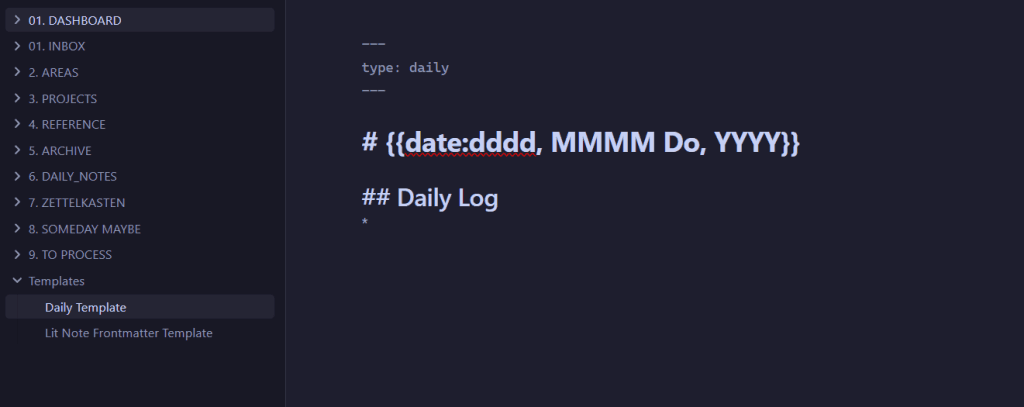
If you want every note to automatically look the same, you can set up a template.
To create a template, first create a folder for your templates (again, I’ve been creative and called it ‘templates’). Then, within that folder, create a note and format it as you would like each daily note to look
Start by keeping it simple. As you use your daily notes, you might want it to do other things, or have the template orgainsed with different headings for different aspects of your day (work, home, etc.), or daily questions you want to reflect on, etc., but it helps to start out simple first and build a system tailored to your needs rather than adding the kitchen sink and not using it.
Here’s my daily notes template, which I’ve kept basic:
New to Markdown language? You can see a summary of the basic syntax and ‘Obsidian flavoured markdown‘ in the Obsidian help file. I copied the syntax that I use regularly into a note in my own Obsidian vault for easy reference, but you pick it up pretty quickly.
2. Turn on the daily notes and template
Daily notes and templates are both core features of Obsidian, which means you don’t need to add any third-party plugins.
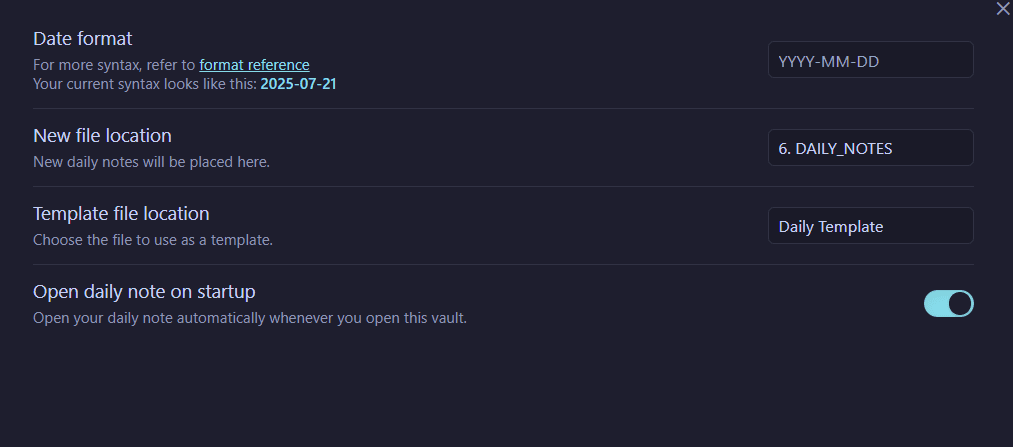
Go to Obsidian Settings > Core Plugins > Daily Notes and switch it on.
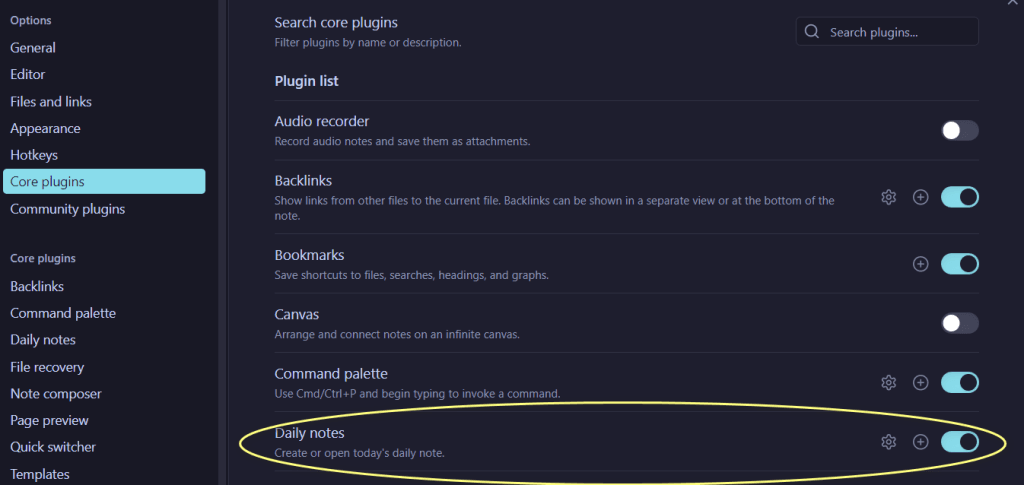
Then click the settings cog icon next to daily notes, and where it says New File Location, start typing the name of the folder you created for your notes, and it will appear in the drop-down menu for you to select.
If you want Obsidian to go to your daily note every time you start Obsidian, select this option too.
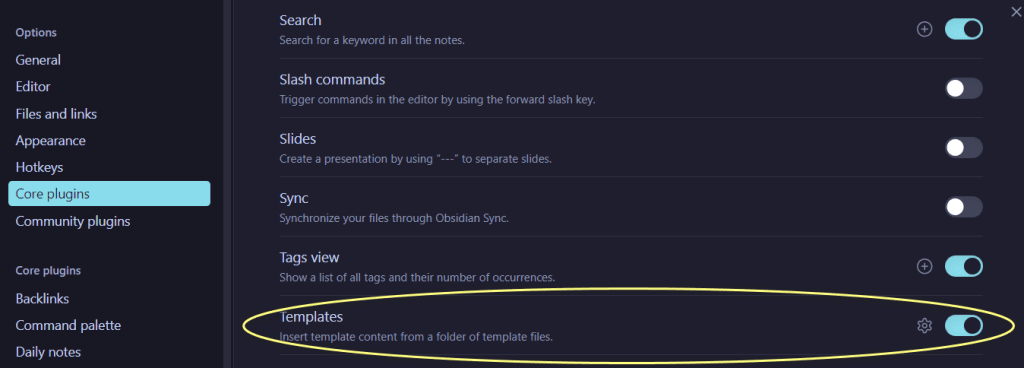
To make sure each daily note uses the template you created, go to Settings> Core Plugins > Templates and turn it on.
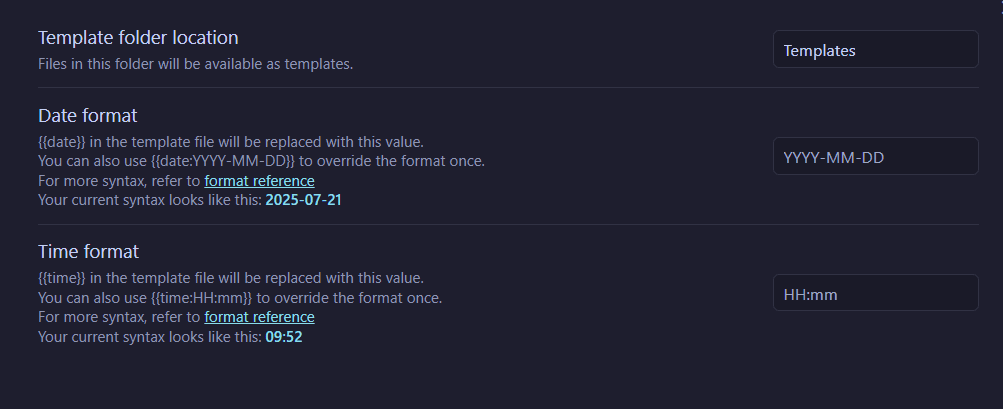
Then, in the templates folder location, type the name of your templates folder and select it from the drop-down box.
That’s it. You’re ready to take your daily notes.
Daily Notes Workflow – Use and Review
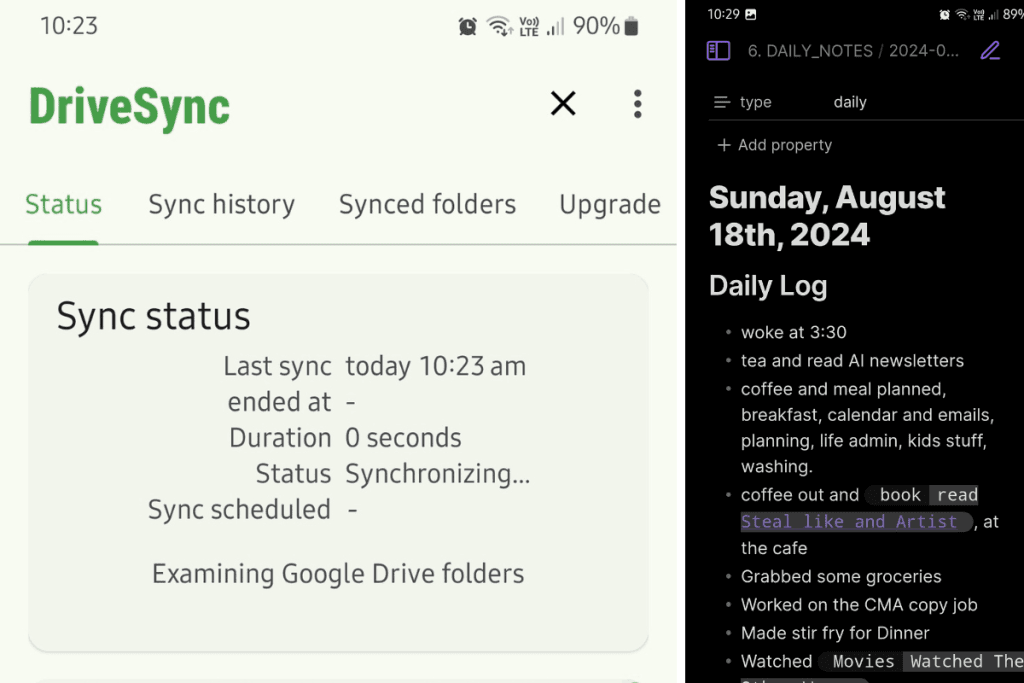
The first part of a daily notes workflow is to open Obsidian first thing when you open your laptop/computer/phone.
That way, you can jot notes easily as you need throughout the day.
Obviously, the computer version is very much geared to people who work on a computer all day, but if your work is more manual, you still need to remember stuff, which is where the mobile version is perfect.
You can even sync between devices if you need to, either by paying for Obsidian sync or hacking the sync with Google Drive and AutoSync. For more information on how to do this, check out this walkthrough on Medium or Obsidian help (different method).
Part of what makes daily notes useful is not just taking them, but reviewing or processing your daily notes. If you’re not processing the notes, then what’s the point of keeping them, right?
Ideally, we process our daily notes every day at the end or start of the day. This should only take five minutes.
Depending on the kind of notes you keep, weekly might work best for you. Whatever the timeframe, the whole point is not to take notes for note’s sake, but to only take useful notes you need and then do something with the information.
Maybe it’s putting the notes you’ve captured on the fly into your task management system or calendar.
Or adding a contact’s email that you quickly jotted down into your contact folder.
Maybe it’s collating meeting notes into a project folder.
If you’re creating a Zettelkasten, maybe it’s creating permanent notes and linking your ideas.
Linking Your Notes For Quick and Easy Reference
The powerful thing about Obsidian and other notetaking apps is the ability to create bi-directional links to other notes.
In Obsidian, you do this with double square brackets. For example:
[[Meditations]]
When you are taking notes in your daily note log, you can put double square brackets around a word or phrase, and it will create a new note for that word/phrase (you may need to click the link in the reading view to generate the note).

When you go into the new note created (in this case’ Meditations’ a list of all the backlinks will appear in the side panel (see below).
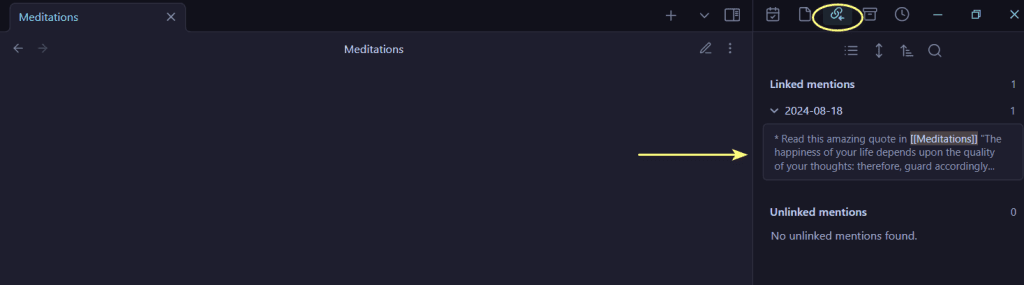
You can also set up Obsidian to show backlinks within the actual note/document as well as the sidebar if you prefer.
To do this, go to Settings > Core Plugins > Backlinks and toggle this on. You will also need to click the settings gear box to toggle on the Show backlinks at the bottom of notes option.
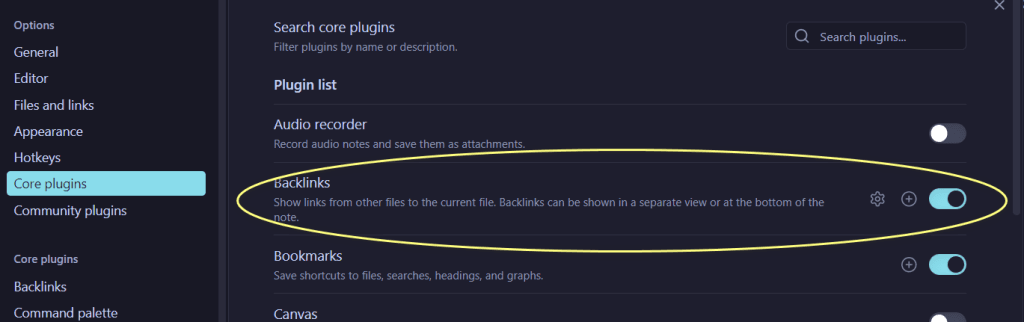
Now, the backlink you made in the Daily Note should appear in the ‘Meditations’ note. If it’s not showing, make sure it’s toggled on in the note as well (see image below).
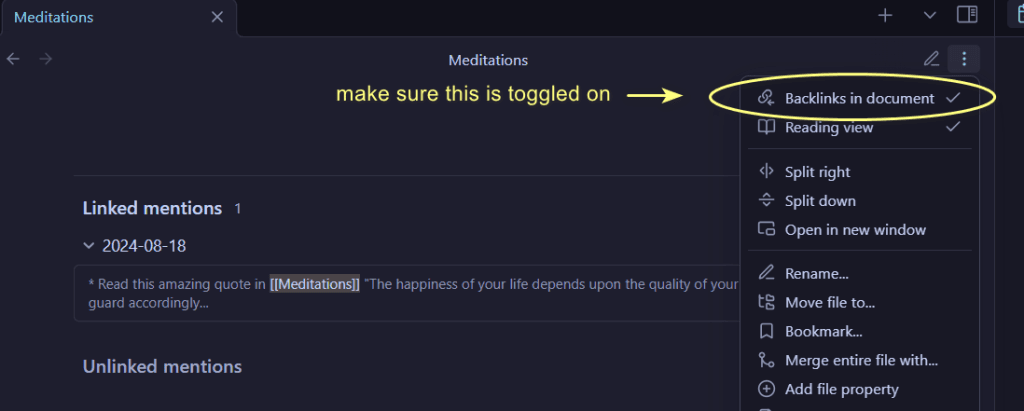
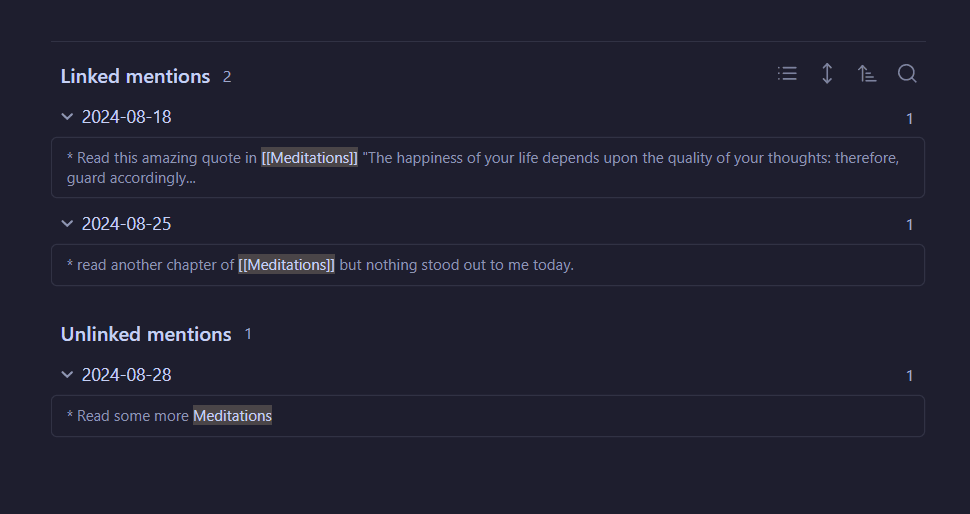
That’s probably the easiest way to collate the points you make in your Daily Notes under one topic. Each time I put [[Meditations]] in double brackets, I’ll create another reference in the ‘Meditations’ note.
Even if you forget to add the brackets, it will appear in the ‘Meditations’ note as an unlinked reference.
You don’t need to make it a specific note for each book, either. You could add the link [[Book Log]] to track your daily reading instead.
Using Dataview to Link Notes – Reading Log Example Automatically
Dataview is a community plugin for Obsidian that basically allows you to query (view) your notes like a database.
It’s pretty complex, and I’m not going to pretend I’m all over Dataview (I’m not), but I’ve found a few basic tricks that helped me cobble together a system that automatically pulls certain information from my daily notes and collates it together in a separate note, similar to the backlinking above.
Truth: simple backlinking described above is probably sufficient for creating a catch-all note on a specific topic if you just want a quick reference.
And because it doesn’t use plugins outside the core software, you don’t need to worry about your system not being supported in the future.
However, if you want to get a bit fancy, Dataview lets you do more than just see links. It lets you collect, sort, and display the content itself, so, for example, every new book highlight you jot in Daily Notes appears in your reading log without copying and pasting.
You can create custom views, reusable dashboards, on-the-fly metrics, and all sorts of useful database-y stuff.
But for now, I’ll show you how I create a super basic Reading Log using Dataview in 4 steps, complete with the code you need:
- Install and enable the Dataview plugin
- Create a blank destination note (e.g. Reading Log) and paste the Dataview Block (see below) into that note
- Add a test entry in today’s Daily Note.
- Jump back to the Reading Log and switch to Reading view to see the result.
1. Install Dataview
First, go to Settings > Community Plugins > Browse to search for the Dataview plugin, click Install, then Enable once it has loaded.
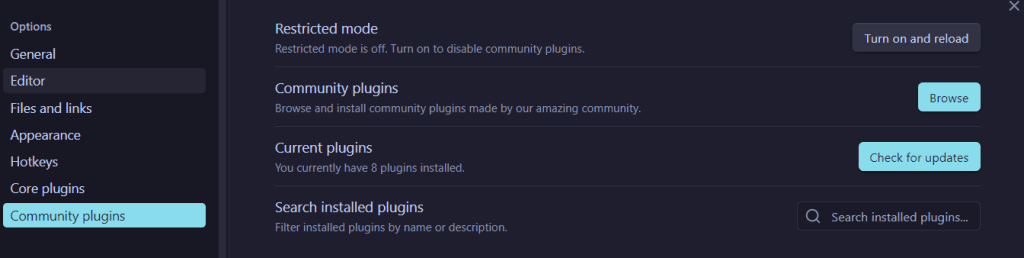
For our purpose, you don’t need to change any of the Dataview plugin settings.
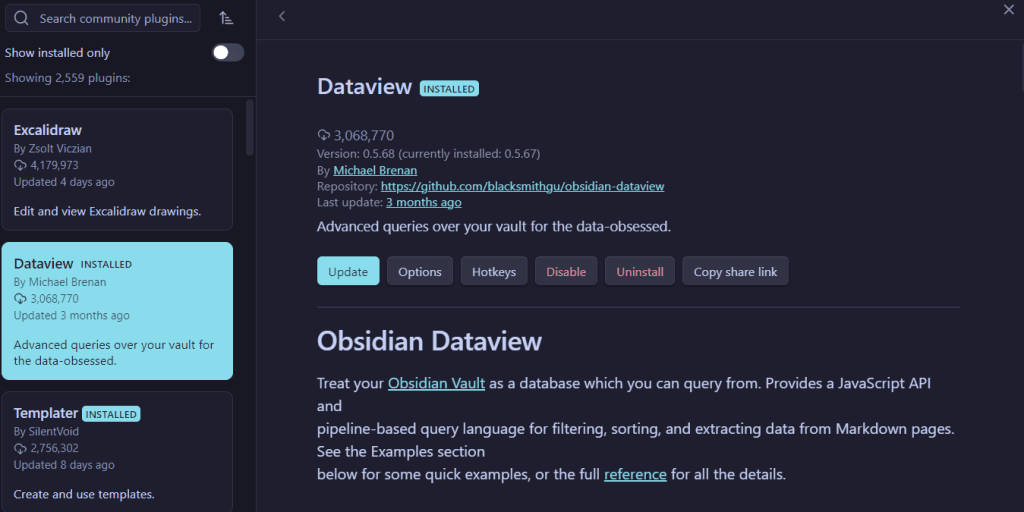
2. Create Your Destination Note
If you’re playing along and making a Reading Log, then create that note.
In the note, paste in the following code:
```dataview
list book
from "DAILY NOTES"
WHERE contains(book, "read")
Flatten book
WHERE contains(book, "read")
SORT file.day DESC
```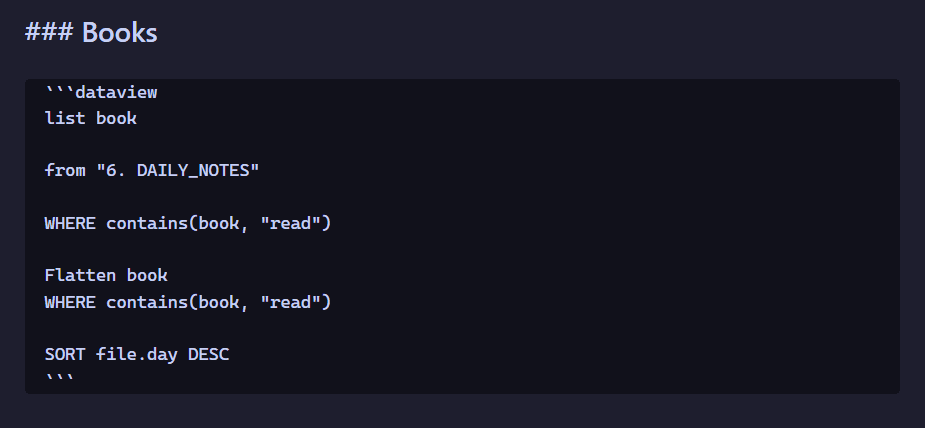
Let’s just explain what’s happening in this very basic dataview code.
First, it’s telling Dataview to create a bulleted list of entries with the term ‘book’ attached. You could also create a table by typing ‘table book‘ instead of ‘list’.
Next, it’s telling Dataview where to pull the information from. In this case, it’s the Daily Notes folder. Important: the spelling, capitalisation, and spacing have to exactly match the folder name.
The next line is telling it to filter for entries where the ‘book’ field’s text includes the word ‘read’.
‘Flatten’ unpacks the list. If the ‘book’ field has a few entries, ‘flatten’ splits them so each gets its own bullet point. This is handy if you read more than one book in a day. The second ‘where’ filters again – possibly redundant. Have a play around if you like and share your Dataview queries in the comments.
Finally, the list is sorted in descending order with the newest entry at the top.
You can recreate this for anything you want to track automatically. For example, a list of movies you’ve watched WHERE contains(movie, “watched”). Just change every instance of the word ‘book’ in the code to movie in the new Dataview.
To track all my kids’ stuff, I create a note for each child: WHERE contains(child’s name, “admin”). You could do the same for a pet – great for tracking flea and tick meds!
You can even create several Dataviews in one note. For example: WHERE contains(Mel, “medical”) and then WHERE contains(Mel, “gym”).
Again, make sure to change every instance of ‘book’ in the original code above to ‘Mel’, and read to ‘medical’ or ‘gym’.
This is a very simple Dataview query. You can definitely create more complex queries, but this is a good start for remembering things. Want to know more about Dataview? Check out this beginner’s guide.
3. Add a test entry in your Daily Note
To create an entry in your Daily note so that your Dataview query picks it up, you use this markdown:
book::read
No spaces between the double colons, and the same capitalisation as is in your Dataview query, as it is case sensitive for the query terms ‘book’ and ‘read’.
So, you can write:
book::read Steal Like an Artist. Loving it so far. Halfway through.
If you want to create a separate note that collates backlinks all of your entries into a ‘Steal Like an Artist’ note, then put the title between double brackets:
book::read [[Steal Like an Artist]]. This quote really spoke to me – “add quote”
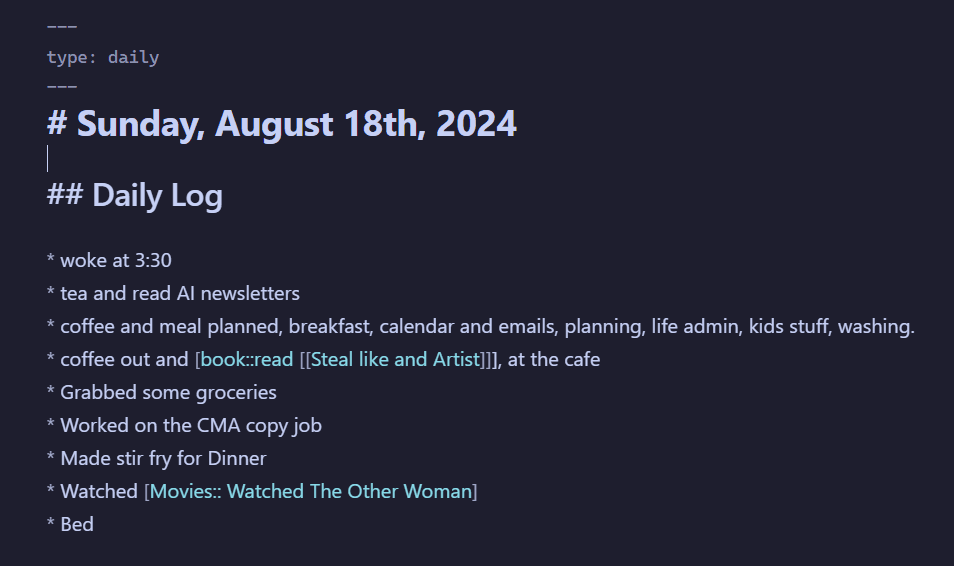
This also adds a clickable link to your Reading Log as well.
4. Check Your Reading Log
Now that you’ve created your first entry, jump back into the Reading Log and make sure it works.
You will need to switch to Reading View in the note to see the entries, not the code.

On the other hand, if you’re in edit mode and the code isn’t showing, you’ll need to toggle the arrows in the top corner of the Dataview box (see screenshot below).
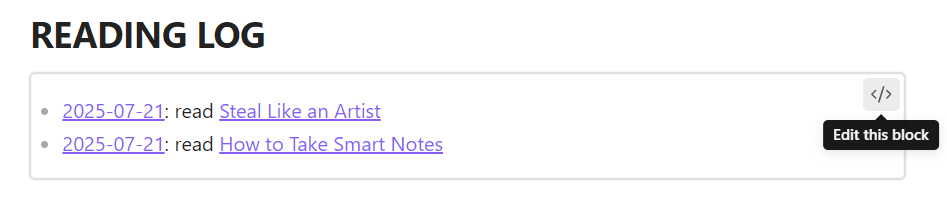
If it doesn’t work, check spelling, spacing, and capitalisation in both the dataview and your Daily Note.
To set this up takes under 10 minutes. But it can save your bacon if, like me, you’re juggling things, a bit distracted, and maybe a bit forgetful. It also helps you track your progress on things that matter to you, all in one location.
Do you use Daily Notes in Obsidian? Have you given Dataview a go? Let me know in the comments below how you use it to track all the things.